🛡️ Recovery
📋 Beginner
How to Create a Restore Point
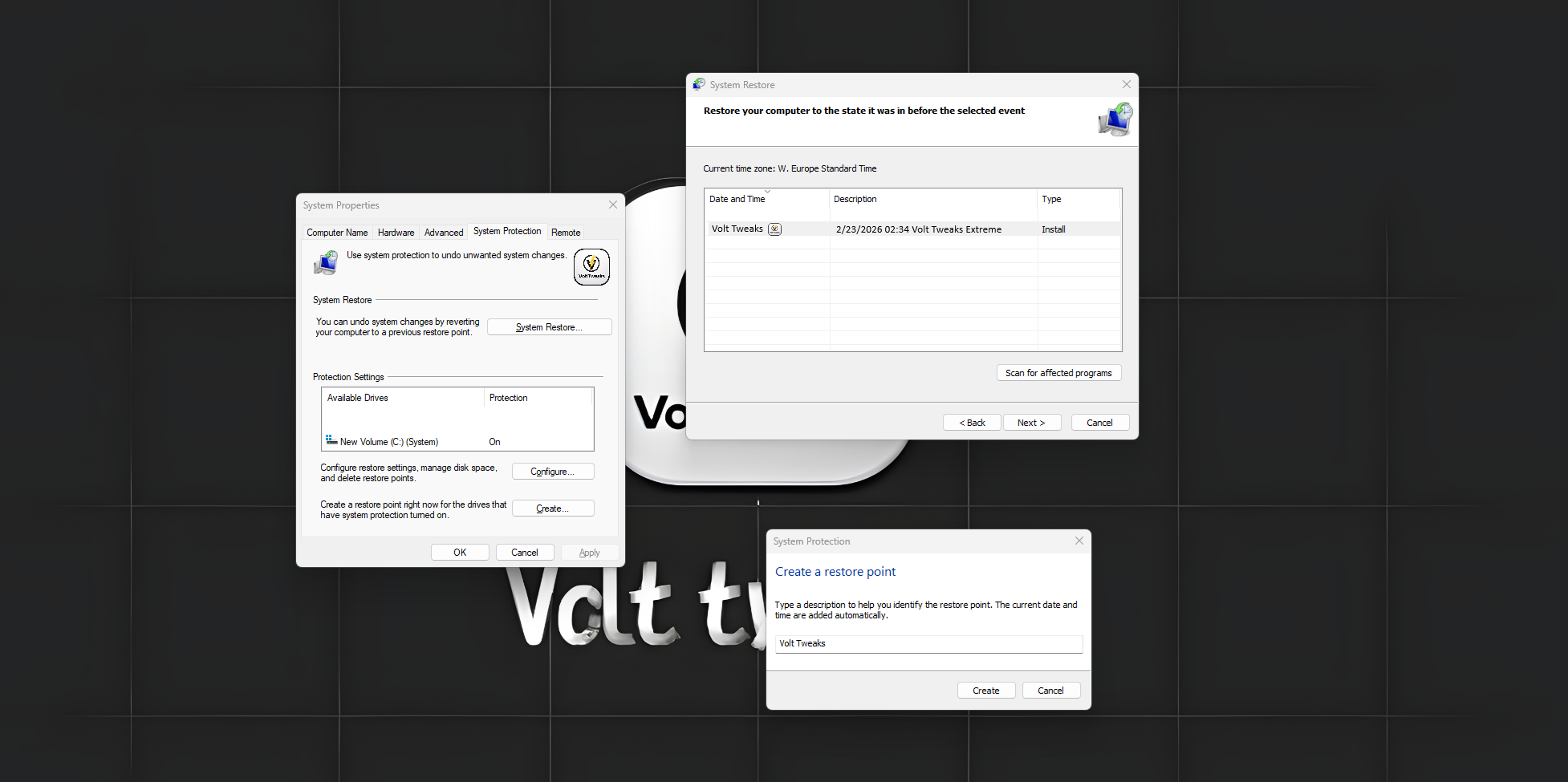
How to Create a Restore Point in Windows 10 / 11
A restore point lets you return your computer to an earlier working state if something goes wrong.
Step 1: Open System Protection
- Press Windows key + S.
- Type Create a restore point.
- Click on it.
Step 2: Turn On Protection (If Needed)
- In the System Protection tab, look under Protection Settings.
- Select your system drive (usually C:).
- Click Configure.
- Select Turn on system protection.
- Click OK.
Step 3: Create the Restore Point
- Click Create.
- Type a name (for example: Before installing driver).
- Click Create again.
- Wait until Windows confirms it was created successfully.
- Click Close.
That’s it ✅
How to Use a Restore Point
- Open Create a restore point again.
- Click System Restore.
- Click Next.
- Select a restore point.
- Click Next → Finish.
- Your PC will restart and restore.
If It Doesn’t Work
Restore Button Is Greyed Out
- Make sure System Protection is turned on (see Step 2).
Restore Failed
- Try running System Restore in Safe Mode.
- Temporarily disable your antivirus.
- Make sure you have enough free disk space.
No Restore Points Available
- System Protection may not have been enabled before.
- Turn it on now to create restore points for the future.